

Numberries for Ozon
Extension
Shelf cell number printing for Ozon pickup points
At Ozon Turbo pickup points, with the free Numberries Bridge extension, the label with the cell number prints right after the scan — including with “Принять вручную” (Accept manually) and when you move an item to Ozon Shelf.
30–70 ms
print time on a mid-range computer and printer
Setup
Three steps to automatic printing
-
Install Numberries
Download the app for Windows 10 or 11 — all components install automatically.
-
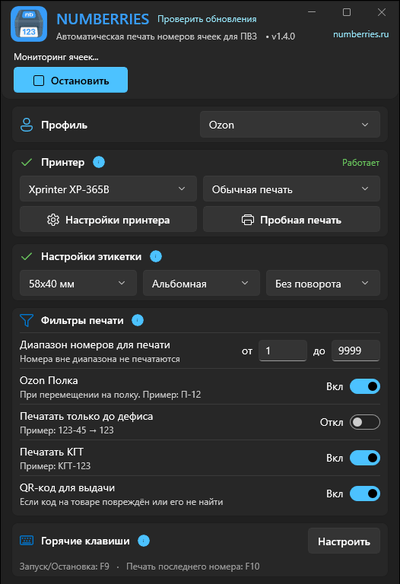
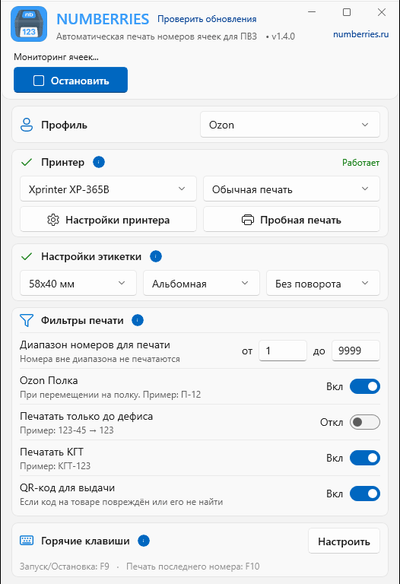
Choose the Ozon profile
The app offers to install the Numberries Bridge extension in your browser.
-
Select “Запустить” (Start) and scan
Work in Ozon Turbo’s “Приёмка” (Receiving) as usual, and the cell label prints on its own. When the app starts with Windows, you don’t need the button: work starts automatically.
What you’ll need
- A computer with Windows 10 or 11
- Chrome, Edge, or Yandex Browser
- Any printer that can print from Windows; check that your model works during the free trial
Browser extension
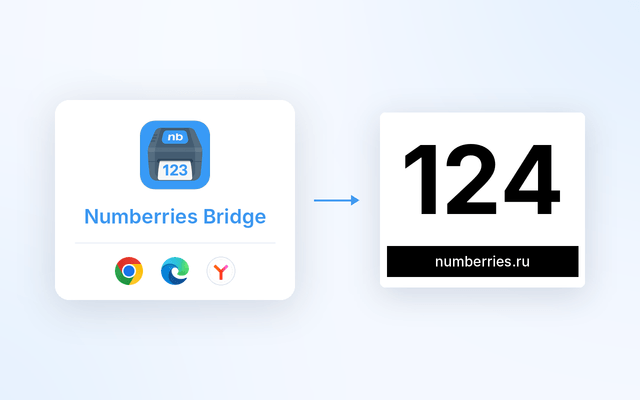
Numberries Bridge
A free browser extension — you need it for the Ozon and Yandex Market profiles. The app offers to install it for you.
 Google Chrome
 Microsoft Edge
 Yandex Browser
FAQ
What do I need to print Ozon cells?
For Ozon Turbo: choose the Ozon profile and install the free Numberries Bridge extension — the app offers to do this for you. Then scan items in “Приёмка” (Receiving) as usual, and the label prints on its own. You don’t need to select a screen area.
How do I install the Numberries Bridge extension?
Choose the Ozon profile in the app, and it offers to install the extension in your browser: Google Chrome, Microsoft Edge, or Yandex Browser. It doesn’t work in other browsers yet. Learn more on the extension page.
Are bulky item (КГТ) cells printed?
Yes. Bulky item cells such as “КГТ-36-1” print on one line if the “Печатать КГТ” (Print bulky items) switch is on in the print filters.
What is the pickup QR code?
A backup code on the Numberries label for faster handover. Sometimes the Ozon code on an item is damaged or hard to find — say, a clothing bag is torn and the tag is somewhere inside. Then at handover you just scan the QR code on the label. It prints during receiving in the bottom-right corner of the label, is on by default and can be turned off with “QR-код для выдачи” (Pickup QR code) in the print filters. Requires Numberries Bridge 1.2.0 or later.
Does Numberries print labels for Ozon Shelf?
Yes. When you move an item to Ozon Shelf, a label with the shelf number prints, such as “П-12”. It’s on by default and can be turned off with the “Ozon Полка” (Ozon Shelf) switch in the print filters. Requires Numberries Bridge 1.2.2 or later.
How many labels print when I scan again?
Each scan during receiving prints one label, including with “Принять вручную” (Accept manually) and when you scan several items in quick succession. Scanning an item that’s already been received, or a second item for the same cell, prints one more label each time, while a double read of the same item prints just one. Returns and unrelated codes don’t print a label; receiving with “Вернуть продавцу” (Return to seller) does. If you need another label for the last cell, press F10.
Does the extension send data over the internet?
No. The extension works only together with the Numberries app on your computer. It sends nothing to Numberries servers, the marketplaces or any other companies. Learn more in the Extension Privacy Policy.
How much does Numberries cost?
290 ₽ per month or 2,900 ₽ per year — 2 months free. The first 14 days are free, no credit card required. One license works on one computer with all profiles. All plans
Start now
Start using Numberries today
Try every feature free for 14 days. No credit card, no hidden fees.
- No credit card required
- 14 days free